Algorithms and flowchart
The algorithm is a step-by-step instruction, guideline or rule to performe some action or reach the solution for given problem. Flowchart is one of the way to represent algorithm graphically, where graphical elements like boxes, squares, circles, and arrows connecting them represent flow of control. Every element can represent on step in the instructions.
Simplified flowchart elements:
Start
Circle.
End
Filled circle inside bigger circle.
Action or expression
Rectangle. Inside rectangle a name of the action, name of the sub-routine or short description can be written. Similar actions can be included into one general action.

Sequence
Arrow, by pointing next activity.
 �
�
Condition / Decision
Diamond (rhombus). Inside diamond is a logical expression and in most cases two arrows are drawn out from diamond. One is when logical expression results True (Yes/1) and other when expression result is False (No/0). Always both arrows have to be labeled. In special case only one arrow can be used as output from diamond. The case is when logical expression can clearly result only one solution, e.g. True. This is the case where for example endless cycle is used in program code (e.g. while (true)).

Data exchange
Trapezoid. Inside trapezoid a name or activity is described. In robotics it is usually used to communicate with sensors and user. For simplification also normal rectangle action can be used instead of trapezoid.

Examples
Drawing flowchart diagrams one can use common office suits like MS Word or MS Excel or OpenOffice/LibreOffice Writer or Calc but better results can be get by using special programs like MS Vision, OpenOffice/LibreOffice Draw, Google draw or some special diagram creating software.
Flowcharts describing microcontroller software usually do not have ends, instead whole main activity in an endless cycle. The exit condition of the endless cycle will never be true and therefore this is the case where condition block (diamond) can be represented only on exiting arrow. Condition it self can be notes simply True or 1. Creating diagrams it is important to keep in eye on the fact that if the program has forks, it can be done only through the diamond object. Junctions (two arrows are joining) can be described by special symbol, but in simple cases, one may simply have an arrow point to another arrow instead.
Following examples illustrate the use of flowchart elements for describing simple algorithm. First example is simple routine by describing one way flow without any cycle or decision points.

Following example describes a system which detects 1 m area and if an object entering into inspected area an alarm is triggered for a 10 seconds. Alarm is working until the object is left from the inspected area.

Sensors

Sensors are devices converting any kind of physical attributes (temperature, luminance, force, acceleration etc.) to a understandable form for humans or machines. With the help from sensors the microcontroller receives information from the surrounding environment and makes decisions based on it. There are many types of sensors, approximately 195 different types are listed in Wikipedia. Only sensors with electrical output signal can be connected to microcontrollers. Based on electrical output signal, is possible to segment sensors as digital and analogue sensors.
In analogue sensor any change in physical attributes changes one of its electrical values, usually voltage, current or resistance. Since microcontrollers are digital devices, the signal have to be converted from analogue to digital before delivering it to controller. For this purpose analogue-digital converters are used witch usually are built-in to the microcontroller.
Analogue sensor which already includes digitizer of information, it is called digital sensor. Digital sensors can also standardize information, calibrate sensors and perform a great deal of other functions. There are many ways for transmitting info from digital sensor to microcontroller: the easiest is with logical signals, more complex way – through some data link interface. The following exercises though, are introducing simpler sensors and sensors known in robotics.
Photoresistor
Theory

A photoresistor

Electrical symbol for a photoresistor
A photoresistor is a sensor which electrical resistance is altered depending on the light intensity falling on it. The more intense is the light the more free carriers are formed and therefore the lower gets the resistance of the element. Two exterior metal contacts of the photoresistor are reaching through the ceramic base material to the light sensitive membrane, which determines the electrical resistance properties with its geometry and material properties. Since photo sensitive material itself has high resistance, with narrow, curvy track between the electrodes, low total resistance at average light intensity is gained. Similarly to the human eye, the photoresistor is sensitive at certain range of wavelengths and needs to be considered when selecting a photo element, otherwise it may not react to the light source used in the application. Following is simplified list of wavelengths of visible light segmented by colours:
| Colour | Range of wavelength (nm) |
| Purple | 400 – 450 |
| Blue | 450 – 500 |
| Green | 500 – 570 |
| Yellow | 570 – 590 |
| Orange | 590 – 610 |
| Red | 610 – 700 |
A range of working temperature is set for photoresistor. Wishing the sensor to work at different temperatures, precising conversions must be executed, because the resisting properties of the sensors are depending on the temperature of the ambient.
For characterizing light intensiveness physical concept called light intensity (E) is used, this shows the quantity of light reaching any given surface. Measuring unit is lux (lx), where 1 lux represents, the even flow of light 1 lumen, falling on a surface of 1m2. Hardly ever in reality falls light (living area) on a surface evenly and therefore light intensity is reached generally as a average number. Below are few examples of light intensity:
Values of light intensity for comparison:
| Environment | Intensity of light (lx) |
| Full moon | 0,1 |
| Dusk | 1 |
| Auditorium | 10 |
| Class room | 30 |
| Sunset or sunrise | 400 |
| Operating room (hospital) | 500 - 1000 |
| Direct sun light | 10000 |
Practice
The Sensor module in the HomeLab is equipped with VT935G photoresistor. One pin of the photoresistor is connected to +5 V power supply and second pin to the channel 1 (pin PF1) of the analogue-digital converter. Between this pin and the ground 10 kΩ resistor is also connected, which forms a voltage divider with the photoresistor. Since the electrical resistance of the photoresistor is decreasing as the light intensity falling on it grows, the measured voltage on the pin of the microcontroller grows as light intensity grows. It is worth to take into account that the photoresistor used in the HomeLab reacts most on orange and yellow light.
The sensor VT935G is not meant to be a specific measuring device. It is meant to be more a device to specify overall lighting conditions – is there a lighted lamp in the room or not. In this case one has to just measure the resistance of the sensor in the half dark room, note it in the program and compare measured values – is it lighter or darker.
The exercise here is a little bit more complex as the light intensity is measured also in lux. For doing this, exists an approximate formula and floating-point variables. In the C-language are floating-point variables float- and double-type variables, which can be used to present fractions. Their flaw is high demand of resources. Computers have special hardware to calculate floating-point variables, in the 8-bit AVR microcontroller calculations are executed in software which demands a lot of memory and time. If the flaws are not critical, the floating-point variables are worth using.
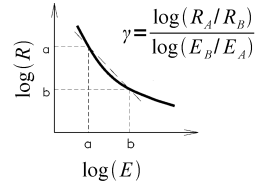
Relationship between resistance (R) of VT935G and intensity of light (E)
There is an approximate formula showing the relationship between the intensity of light and electrical resistance in the sensor datasheet. As seen on the graph (on the right), with using logarithm scale, the resistance and intensity of light are almost in linear relationship and form a in-line formula, because following conversion applies:
log(a/b) = log(a) - log(b)
The relation is characterised by the ascent of the factor γ (ascend of the line), which is 0,9 on VT935G sensor. We have also data on one of the points on that line: resistance 18.5 kΩ (RA) at 10 lx intensity of light (EA). Hence we have the coordinates of one point as well as the ascent of the line and for calculating any other point, we only need one coordinate. Meaning, if sensors' resistance (RB) is measured, it is possible to calculate from the equation of line, the intensity of light EB) that falls on the sensor. Finding EB from the equation of line:
log(EB) = log(RA/RB) / γ + log(EA)
EB = 10log(RA/RB) / γ + log(EA)
This gives the formula for calculating the intensity of light when the resistance is known. The resistance can not be measured directly with microcontroller. For this the photoresistor is in the voltage divider. The output voltage of this voltage divider is converted to a specific variable by the analogue-digital converter (ADC). To find the resistance, the output voltage (U2) of the voltage divider must be calculated first, using the ADC value, also comparison voltage (Uref) of the converter must be taken into account:
The formula is following:
U2 = Uref * (ADC / 1024)
From the formula for voltage divider(check the chapter on voltage divider) the resistance of the upper photoresistor (R1) can be found:
R1 = (R2 * U1) / U2 - R2
In the following calculation of voltage and resistance, the known factors are replaced with numbers and indexes have been removed:
U = 5 * (ADC / 1024)
R = (10 * 5) / U - 10
For finding the intensity of light, simplifying conversions can be done:
E = 10log(18.5/R) / 0.9 + 1 = 10log(18.5/R) * 10/9 * 101 =
= 10log18.5*10/9 - logR*10/9 * 10 = (10log18.5*10/9 / 10logR*10/9) * 10 =
= (18.510/9 / R10/9) * 10 = 18.510/9 * 10 * R-10/9
By calculating the constant in front of the variable of the field R, the expression remains follows:
E = 255,84 * R-10/9
These formulas help only if the photoresistor on the module of sensors of the HomeLab is used. If circuit is used equipped with different components, respective variables need to be changed. Next, source code of the example program is presented, which measures and calculates using ADC and displays the intensity of light on the LCD. But before compiling the program, the settings for using floating-point variables must be written in the project. How to do that is explained in the chapter of installing the software.
In the example program variables of voltage, resistance and intensity are defined using type double of floating-point variables. The variables which should be used as floating-point variables must always contain a decimal point (it can be also just 0, because then the compiler understands it correctly). When using sprintf for converting floating-point variable to text, “%f” format must be used, this may be enhanced using integers and decimal places. For example: “%3.2”, which displays always 3 integers and 2 decimal places.
//
// The example program of the photoresistor of the module of sensors of the HomeLab
// Approximate value of the intensity of light is displayed on the LCD.
//
#include <stdio.h>
#include <math.h>
#include <homelab/module/lcd_gfx.h>
#include <homelab/adc.h>
#include <homelab/delay.h>

//
// Main program.
//
int main(void)
{
	char text[16];
	unsigned short adc_value;
	double voltage, resistance, illuminance;

	// Initializing the LCD
	lcd_gfx_init();

	// Clearing the LCD.
	lcd_gfx_clear();

	//Cursor on the position x=3, y=1
	lcd_gfx_goto_char_xy(3, 1);

	// Name of the program
	lcd_gfx_write_string("Luxmeter");

	// Setting the ADC
	adc_init(ADC_REF_AVCC, ADC_PRESCALE_8);

	// Endless loop.
	while (true)
	{
		// Reading the average value of the photoresistor
		adc_value = adc_get_average_value(1, 10);

		// Calculating the voltage in the input of the ADC
		voltage = 5.0 * ((double)adc_value / 1024.0);

		// Calculating the resistance of the photoresistor in the voltage divider
		resistance = (10.0 * 5.0) / voltage - 10.0;

		// Calculating the intensity of light in lux
		illuminance = 255.84 * pow(resistance, -10/9);

		// Converting the intensity of light to text
		sprintf(text, "%0.1f lux   ", illuminance);

		// Displaying it on the LCD
		lcd_gfx_goto_char_xy(3, 3);
		lcd_gfx_write_string(text);

		// Delay 500 ms
		sw_delay_ms(500);
	}
}
Spell check
1-wire temperature sensor
Theory
1-wire protocol
Dallas Semiconductor Corp. worked out a communication bus system for simple sensors and other equipments called 1-wire protocol. This protocol provides low-speed data exchange, signaling and power over single signal wire. It is possible to connect up to 75 devices to one bus, forming MicroLan networks. MicroLan networks have one master unit, what controls network's traffic and ensures that one device at a time uses the bus. 1-wire protocol is similar to I2C protocol, but has lower data rates, longer distance range and only one wire for all communication.
1-wire communication is mostly used for communicating between different sensors and memory units. Bus data transfer rate is approximately 16.3 kbit/s. Communication is started by a master with the “reset” pulse, which pulls the wire to 0 volts for at least 480 µs. This signal resets all devices on the bus, simply taking the power out from the bus. After that, any device on the bus, shows that it exists with a “presence” pulse by holding the wire to ground at least 60 µs after the master releases the bus. With following 8-bit command and then data can be sent or received in groups of 8-bits. Each device on the bus has a unique 64-bit serial identification number.
To find all devices, master send an enumeration command, and an address. For each bit master listens the answer. If slave device has all right address bits it returns a 0. Master uses this simple behavior to search for valid sequences of address bits. An enumeration of 10 or 15 devices finishes very quickly.

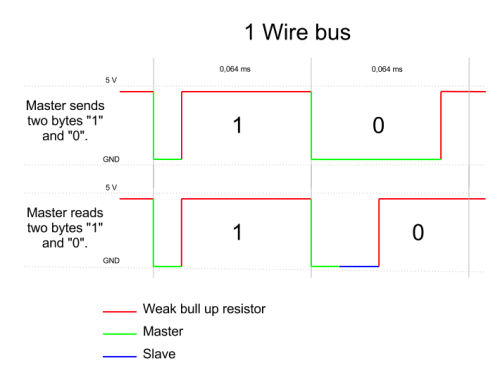
A read-time is initiated by master device pulling the 1-wire bus low for a
minimum of 1 µs and then releasing the bus. Slave device transmits a 1 by leaving the bus high
and transmits a 0 by pulling the bus low.
When transmitting a 0, slave device releases the bus by the end of the time, and the bus will be pulled back to its high idle state by pull-up resistor. Output data from the slave is valid for 15 µs after the falling edge which initiated read-time.
Practice
The DS18S20 digital thermometer provides 9–bit centigrade temperature measurements and has an
alarm function with nonvolatile user-programmable upper and lower trigger points. A digital thermometer DS18S20 with a 1-wire communication protocol can be connected with Robotic HomeLab Sensor module external sensor connectors.
Sensors's technical properties are following:
In the example below, 1-wire temperature sensor takes measurements and displays the results on HomeLab's User Interface board LCD display. With the present configuration and provided example code only 5 sensors can be connected to one bus. Sensors will be found automatically.
1-wire temperature sensor must be connected to sensor board ADC3 pin group. After loading the example program to the controller appears sensors queue number and temperature in Celsius on the User Interface board LCD display. If more than one sensor are connected on the bus, then sensor measurements are displayed in a row. Sensor and power supply type are also displayed. Homelab sensor's type is DS18S20 and power supply type is “externally”. It's possible to connect sensor only with 2 wires, in that case sensor receives it's power supply from data bus and on display “parasite” is displayed. “ERROR!” is shown in the display if error occurs, in this case the problem is most likely related with wiring.
Colors of the wires for connecting the sensor:
Green - Optional VDD pin. VDD must be grounded for operation in parasite power mode
White - Data Input/Output pin. Open-drain 1-wire interface pin. Also provides power to the device when used in parasite power mode.
Brown - Ground.
Example code enabling to read the temperature with 1-wire protocol is shown below. It is important to include “onewire.h” and “onewire.c” to the program. Sensor-specific code is located in “ds18x20.h” and “ds18x20.c” files.
#include <avr/io.h>
#include <string.h>
#include <stdio.h>


#include "onewire.h"
#include "ds18x20.h"

#include <homelab/module/lcd_gfx.h>
#include <homelab/delay.h>
#include <homelab/pin.h>

//
// Sensor queue number and sensor's specific code are stored here
//
extern uint8_t gSensorIDs[MAXSENSORS][OW_ROMCODE_SIZE];

int main( void )
{
  uint8_t nSensors, i;
  int16_t decicelsius;
  uint8_t error;
  char s[10];
  char sensor_nr[1];

  // Pin configuration of the Sensor board's multiplexer.
  pin multiplexer_pin = PIN(G, 0);

  // LCD display initialization
  lcd_gfx_init();

  //  LCD display clear
  lcd_gfx_clear();

  // Switching back light on
  lcd_gfx_backlight(true);

  // Multiplexer's pin configuration as a output and then switchover it
  // to connect external sensor with the controller .
  pin_setup_output(multiplexer_pin);
  pin_set(multiplexer_pin);

  // 1-Wire bus configuration. In sensor board the ADC3 pin group is same as PF3.
  ow_set_bus(&PINF,&PORTF,&DDRF,PF3);

  // Searching for sensors. For variable nSensors is attributed the sum
  // of all found sensors.
  nSensors = search_sensors();

  while(1)
  {

    error = 0;

    // If no sensors found the error flag is set.
    if ( nSensors = 0 )
    {
      error++;
    }

    // All the sensor are displayed starting at the bottom.
    for ( i = nSensors; i > 0; i-- )
    {
	// Taking the measurements. In case of error, the error flag is set.
	if ( DS18X20_start_meas( DS18X20_POWER_PARASITE, &gSensorIDs[i-1][0] ) = DS18X20_OK)
	{
	  sw_delay_ms( 750 );

	  // Measurements are saved in decicelsius. In case of error, the error flag is set.
	  if ( DS18X20_read_decicelsius( &gSensorIDs[i-1][0], &decicelsius) = DS18X20_OK )
	  {

	    // Displaying the word "TEMP".
	    lcd_gfx_goto_char_xy(2, 1);
	    lcd_gfx_write_string("TEMP");

    	    // Displaying degree sign
	    lcd_gfx_goto_char_xy(13, 1);
	    lcd_gfx_write_string("C");

	    // Making the readings to strings and adding +/-.
	    DS18X20_format_from_decicelsius( decicelsius, s, 10 );

	    // If is needed maximum accuracy use this function:
	    // DS18X20_format_from_maxres( tval, s, 10 );

	    // Displaying the temprerature
	    lcd_gfx_goto_char_xy(7, 1);
	    lcd_gfx_write_string(s);

	    // Displaying sensors queue number. Firstly it's converted to a string.
	    lcd_gfx_goto_char_xy(0, 1);
	    sprintf(sensor_nr, "%d", i);
	    lcd_gfx_write_string(sensor_nr);
	  }
	  else
	  {
	    // CRC error (Connection is down)
	    error++;
	  }

	}
	else
	{
	  // Taking the measurements failed, maybe in data bus has a short circuit
	  error++;
	}
    }


    // Displaying the error messege.
    if ( error )
    {
	lcd_gfx_goto_char_xy(1, 3);
	lcd_gfx_write_string("ERROR!");
	error = 0;
    }
    else
    {
	lcd_gfx_goto_char_xy(1, 3);
	lcd_gfx_write_string("        ");
    }

    sw_delay_ms(500);
  }
}
Lidar
Theory
LIDAR (Light Detection and Ranging) is an optical remote sensing system which can measure the distance of a target by illuminating it with light. LIDAR technology is being used in Robotics for the perception of the environment as well as object classification. The ability of LIDAR technology to provide 2D elevation maps of the terrain, high precision distance to the ground, and approach velocity can enable safe landing of robotic and manned vehicles with a high degree of precision.
Lidar consists of a transmitter which illuminates a target with a laser beam, and a receiver capable of detecting the component of light which is essentially coaxial with the transmitted beam. Receiver sensors calculate a distance, based on the time needed for the light to reach the target and return. A mechanical mechanism with a mirror sweeps the light beam to cover the required scene in a plane or even in three dimensions, using a rotating nodding mirror.
One way to measure the time of flight for the light beam is to use a pulsed laser and then measure the elapsed time directly. Electronics capable of resolving picoseconds are required in such devices and they are therefore very expensive. Another method is to measure the phase shift of the reflected light.
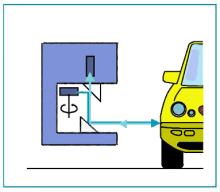
Working principle
Collimated infrared laser is used to the phase-shift measurement. For surfaces, having a roughness greater than the wavelength of the incident light, diffuse reflection will occur. The component of the infrared light will return almost parallel to the transmitted beam for objects.

Phase-shift measurement
The sensor measures the phase shift between the transmitted and reflected signals. The picture shows how this technique can be used to measure distance. The wavelength of the modulating signal obeys the equation:
c = f ∙ τ
where c is the speed of light and f the modulating frequency and τ the known modulating wavelength.
The total distance D' covered by the emitted light is:
D' = B + 2A = B + (θ * τ) / 2π
where A is the measured distance. B is the distance from the phase measurement unit. The required distance D, between the beam splitter and the target, is therefore given by
D = τ * θ / 4π
where θ is the electronically measured phase difference between the transmitted and reflected light beams.
It can be shown that the range is inversely proportional to the square of the received signal amplitude, directly affecting the sensor’s accuracy.
Practice
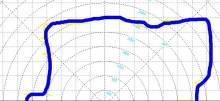
Map created by Lidar
In autonomous robotics as well as industrial robotics SICK laser rangers are very widely used. The SICK LMS 200 can easily be interfaced through RS-232 or RS-422, providing distance measurements over a 180 degree area up to 80 meters away. This lidar is based on a time-of-flight measurement principle. The example output of one scan measurement result is shown in the picture on the right.
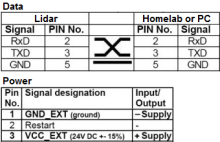
Connection diagram
To make the SICK operational, it must be wired for power and communication. On the back of the SICK there are two connectors that looks like serial port connectors. The connector with the female end is for power and the connector with the male end is for communications. The power and the serial cable should be wired as shown in the picture. Lidar can be connected with Robotic HomeLab Communication module using one of the RS-232 connectors. Power must be taken from external power source and this is not included in Robotic HomLab kit. Required dc power voltage is 24 V.
The SICK receives commands as streams of bytes through the serial port. When transmitting data, it sends back streams of bytes corresponding to distance measurements at a given angle.
To grab data from the SICK, you must first send a start string to tell the sensor to start sending data. This string is:
Hexadecimal Form: 02 00 02 00 20 24 34 08
Decimal Form: 2 0 2 0 32 36 52 8
If the start string is successfully sent, Lidar will begin streaming data over RS232. Incoming data from a scan is sent sequentially as the sensor scans through 180°. For example if the sensor is set to scan 180° with resolution of 0.5° the first data point which was sent will correspond to 0°, the next will correspond to 0.5°, the following to 1°, and so on. This means there is total of 361 data points. Each distance measurement is sent in the form of two bytes. The least signifficant byte is sent first followed by the most signifficant byte. Operating in metric mode the unit for the measurements is in milimeters.
Finally to stop the sensor from sending data a stop string must be sent. This string is:
Hexadecimal Form: 02 00 02 00 20 25 35 08
Decimal Form: 2 0 2 0 32 37 53 8
Following example shows how to initiate Lidar and get the count of package.
#include <stdio.h>
#include <homelab/delay.h>
#include <homelab/pin.h>
#include <homelab/module/lcd_gfx.h>
#include <homelab/usart.h>

//
// Determining USART interface.
//
usart port = USART(0);

//
// Determining the pins of buttons.
//
pin button1 = PIN(C, 0);
pin button2 = PIN(C, 1);


//
// Initialize
//
static inline void init()
{
	// Setting buttons pins as inputs.
	pin_setup_input_with_pullup(button1);
	pin_setup_input_with_pullup(button2);

	// Set-up of the LCD.
	lcd_gfx_init();

	// Cleaning the screen.
	lcd_gfx_clear();

	// Switching on the background light.
	lcd_gfx_backlight(true);

	// Displaying the name of the program.
	lcd_gfx_goto_char_xy(3, 1);
	lcd_gfx_write_string("Lidar");

	// The set-up of the USART interface.
	usart_init_async
	(
		port,
		USART_DATABITS_8,
		USART_STOPBITS_ONE,
		USART_PARITY_NONE,
		USART_BAUDRATE_ASYNC(9600)
	);
}

//
// Main program
//
int main(void)
{
	unsigned char new_value1, old_value1 = 0, new_value2,
		old_value2 = 0;

	char c;
	int i = 0;
	int count = 0;
	char text[16];

	// Initialize
	init();

	// Endless cycle
	while (1)
	{

		// Reads buttons states
		new_value1 = pin_get_debounced_value(button1);
		new_value2 = pin_get_debounced_value(button2);

		// Button S1 is pressed.
		if((!new_value1) && (old_value1))
		{
			//Send "02 00 02 00 20 24 34 08" to start scanning.

			usart_send_char(port, 0x02);
			usart_send_char(port, 0x00);
			usart_send_char(port, 0x02);
			usart_send_char(port, 0x00);
			usart_send_char(port, 0x20);
			usart_send_char(port, 0x24);
			usart_send_char(port, 0x34);
			usart_send_char(port, 0x08);
		}

		// Button S2 is pressed.
		if((!new_value2) && (old_value2))
		{
			//Send "0x  02 00 02 00	20 25 35 08" to stop scanning.

			usart_send_char(port, 0x02);
			usart_send_char(port, 0x00);
			usart_send_char(port, 0x02);
			usart_send_char(port, 0x00);
			usart_send_char(port, 0x20);
			usart_send_char(port, 0x25);
			usart_send_char(port, 0x35);
			usart_send_char(port, 0x08);

		}


		// Remembers the last keys values.
		old_value1 = new_value1;
		old_value2 = new_value2;


		// Try to read serial port
		if (usart_try_read_char(port, &c))
		{
			//Find a header "0x 02 81 D6 02 B0 69 41". Very basic package start search.
			if(c = 0x02) i++;
			if(c = 0x81) i++;
			if(c = 0xD6) i++;
			if(c = 0x02) i++;
			if(c = 0xB0) i++;
			if(c = 0x69) i++;
			if(c = 0x41) i++;


			//If there is an header
			if(i >= 7)
			{
				//Increse packet counter
				count++;

				//Displaying packet count on the LCD.
				lcd_gfx_goto_char_xy(0, 3);

				sprintf(text, "Pakette: %i", count);

				lcd_gfx_write_string(text);

				i=0;
			}

		}

	}
}
Color sensor
Theory
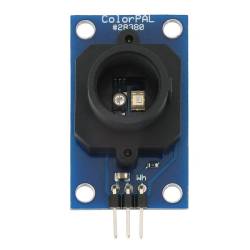
ColorPAL
The color sensor detects the color of the surface, usually in the RGB scale. Color is the result of interaction between a light source, an object and an observer. In the case of reflected light, light falling on an object will be reflected or absorbed depending on surface characteristics such as reflectance and transmittance. For example, green paper will absorb most of the reddish and bluish part of the spectrum while reflecting the greenish part of the spectrum, making it appear greenish to the observer.
Measuring the colors of the ingredients are basically two ways. The easiest way is to use a color-changing light source and a sensor that measures the intensity of the light. Most industrial color sensors contain a white light emitter and three separate receivers. There are usually three sets of color source or color filter with peak sensitivities at wavelengths that we identify as red (580nm), green (540nm) and blue (450nm). All colors can be derived by their components.
Color sensors have a variety of applications including detection of environment, choosing the right product and sorting. The detection of color compared to the vision sensor is much faster and cheaper.
Practice
The ColorPAL from Parallax (Datasheet) is a miniature color and light sensor. The ColorPAL uses an RGB LED to illuminate a sample, one color at a time, along with a broad-spectrum light-to-voltage converter to measure the light reflected back. The amount of light reflected from the sample under illumination from each red, green and blue LED can be used to determine the samples color. The subject must be reflective and non-fluorescent. The color of objects that emit light (e.g. LEDs) cannot be detected.
The light sensor used in the ColorPAL is a TSL13T, which has the following spectral sensitivity curve (taken from the TSL13T datasheet and superimposed with the LED wavelengths:

The sensor outputs a voltage proportional to all the light that it sees weighted by the above curve. Therefore, when a subject is illuminated with a red LED only it will respond with a voltage proportional to the red component of the subjects color and similarly with blue and green. When there is ambient light mixed in with the LEDs illumination, its effect can be eliminated by sampling first without any LEDs turned on and then subtracting this reading, in turn, from each of the red, green, and blue components. This reference measurement should be taken before each color measurement to eliminate any effects from varying ambient conditions.
The ColorPAL sensor requires only three connections +5V supply, ground and serial data. It can be plugged directly into Homelab sensor board ADC3 pin group. Communication with the ColorPAL takes place using serial I/O transmitting and receiving at between 2400 and 7200 baud using a non-inverted open-drain protocol.
Force sensor
Theory
FSR (force-sensing resistor) sensor allow you to detect physical pressure, squeezing and weight. FSR is basically a resistor that changes its resistive value (in ohms Ω) depending on how much it’s pressed. These sensors are fairly low cost and easy to use but they're rarely accurate. They also vary some from sensor to sensor perhaps 10%. It means when you use FSR's you should only expect to get ranges of response. As with all resistive based sensors force-sensing resistors require a relatively simple interface and can operate satisfactorily in moderately hostile environments. Compared to other force sensors, the advantages of FSR are their size and good shock resistance. However FSR will be damaged if pressure is applied for a longer time period (hours).
FSR consists of a conductive polymer, which changes resistance in a predictable manner following application of force to its surface. They are normally supplied as a polymer sheet or ink that can be applied by screen printing. The sensing film consists of both electrically conducting and non-conducting particles suspended in matrix. The particles are sub-micrometre sizes, and are formulated to reduce the temperature dependence, improve mechanical properties and increase surface durability. Applying a force to the surface of a sensing film causes particles to touch the conducting electrodes changing the resistance of the film.
Force-sensing resistors are commonly used to create pressure-sensing “buttons” and have applications in many fields, including musical instruments, car occupancy sensors, and robotics.
Practice
Pololu FSR with 12.7 mm diameter circular active area are exhibits a decrease in resistance with an increase in the force applied to the active surface. Its force sensitivity is optimized for use in human touch control of electronic devices. The force vs. resistance characteristic provides an overview of FSR typical response behavior. For interpretational convenience the force vs. resistance data is plotted on a log/log format. In general, FSR response approximately follows an inverse power-law characteristic (roughly 1/R).
The easiest way to measure a resistance of FSR is to connect one terminal to power and the other to a pull-down resistor to ground. Then the point between the fixed pull-down resistor and the variable FSR resistor is connected to the analogue input of a Homelab controller board. In this configuration the analogue voltage reading ranges from 0V (ground) to about 5V (or about the same as the power supply voltage). As the resistance of the FSR decreases the total resistance of the FSR and the pull-down resistor decreases from about 100Kohm to 10Kohm. That means the current flowing through both resistors increases which in turn causes the voltage across the fixed 10K resistor to increase.
Measuring the Newton force by the FSR it is good idea to map analogue voltage reading ranges to 0 V to supply voltage. After that you can calculate the FSR resistance using following formula:
RFSR = 1)


 Motors are actuator devices, actually some of them are and those can also be very different, beginning with operating principles and ending with power and size. In robotics mainly electric motors are used. Electrical motor is a device which converts electrical energy to mechanical energy (work). It works on principles of electromagnetism.
There are several ways to classify electrical motors. Most important is to divide them as alternate current (AC) and direct current (DC) motors. In addition, there are electrical motors with brushes and brush-less motors, linear motors and rotary motors, nano-motors and large motors and so on. On the other hand, some of the segmentations are provisional. For example, linear motion is achieved usually using rotary electrical motor, which is integrated into unitary body with screw mechanism and treated so as linear actuator. In this chapter are covered three most common types of electrical motors in robotics: DC motor with permanent magnets, RC servos and stepper-motor.
===== DC motor =====
Necessary knowledge: [HW] Motor Module, [AVR] Digital Inputs/Outputs, [LIB] Motors, [LIB] Delay
==== Theory ====
Motors are actuator devices, actually some of them are and those can also be very different, beginning with operating principles and ending with power and size. In robotics mainly electric motors are used. Electrical motor is a device which converts electrical energy to mechanical energy (work). It works on principles of electromagnetism.
There are several ways to classify electrical motors. Most important is to divide them as alternate current (AC) and direct current (DC) motors. In addition, there are electrical motors with brushes and brush-less motors, linear motors and rotary motors, nano-motors and large motors and so on. On the other hand, some of the segmentations are provisional. For example, linear motion is achieved usually using rotary electrical motor, which is integrated into unitary body with screw mechanism and treated so as linear actuator. In this chapter are covered three most common types of electrical motors in robotics: DC motor with permanent magnets, RC servos and stepper-motor.
===== DC motor =====
Necessary knowledge: [HW] Motor Module, [AVR] Digital Inputs/Outputs, [LIB] Motors, [LIB] Delay
==== Theory ====


